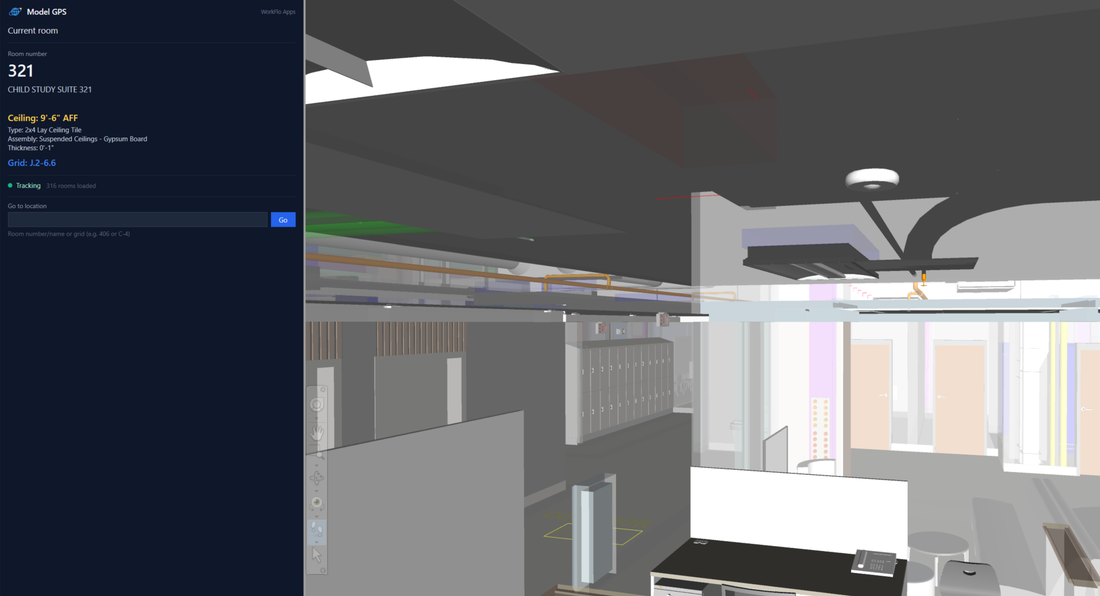
Model GPS is a docked panel for Autodesk Navisworks that answers the question every coordination call opens with: which room am I in? As you navigate, it continuously reports the room you are inside, the clear ceiling height above your head, and the nearest column grid intersection.
Get it free on the Autodesk App Store
Requirements
- Navisworks Manage or Navisworks Simulate, 2020 through 2027.
- Navisworks Freedom cannot load add-ins of any kind, so Model GPS will not run there.
- Windows, 64-bit. No licence key and no account.
Opening the panel
After installing, restart Navisworks. A Model GPS tab appears on the ribbon; click Model GPS to show or hide the panel. Dock it anywhere you like — Navisworks remembers the position between sessions.
What each readout means
Current room
The room name, number and level that the camera is currently inside. Model GPS keeps reporting the room when the camera rises above the ceiling into the plenum, which is where most MEP coordination actually happens and where you would otherwise lose your bearings entirely.
Ceiling
The clear height from finished floor to the underside of the ceiling above the camera, together with the ceiling's type, assembly and thickness. This is the number people argue about on a call, so it is shown in feet and inches to match how it gets said out loud.
Grid
The nearest column grid intersection, for example J.2-6.6. This is how a location gets called
out in the field, so it is the fastest way to tell somebody else where to look.
Go to location
Type a room number, a room name, or a grid reference such as C-4 into the box and press
Go. The camera flies to that location. Useful when somebody names a spot on a call and you
want to be there without hunting for it.
Getting the data into your model
Model GPS reads rooms, ceilings and grids out of the model you have open — it does not invent them. If a readout is blank, the underlying data is missing rather than the tool failing, and the panel will say so rather than guessing.
- Rooms. When exporting or appending from Revit, room geometry must be included. In the Revit NWC export settings, turn on Export room geometry. Without it the model has no rooms to report.
- Ceilings. Ceilings must be modelled as ceilings. A ceiling drawn as a generic slab may not be recognised.
- Grids. Grid lines must be present in the exported model. Some export settings drop datum objects.
Is it safe to run on a live model?
Yes. Model GPS is read-only. It never modifies, saves, or exports your model, and it does not send anything anywhere. It only reads geometry and properties in order to display them.
Troubleshooting
The Model GPS tab is missing from the ribbon
Restart Navisworks once after installing. If it is still missing, confirm you are running Manage or Simulate rather than Freedom.
The room readout is blank
The model was almost certainly exported without room geometry. Re-export from Revit with Export room geometry enabled and re-append.
The room stops updating while I fly
Model GPS reports the room containing the camera. If you are outside the building envelope, or in a space with no room defined such as a shaft or an exterior area, there is no room to report.
Questions
Email info@workfloapps.com. If Model GPS is missing something your workflow needs, we would like to hear it.